
If you've connected to a server far from you, Steam will require additional confirmation to approve the sign-in for your account.
Android
The fastest way to sign in to your account is to use the Steam Guard code. To do so, please follow these step-by-step instructions:
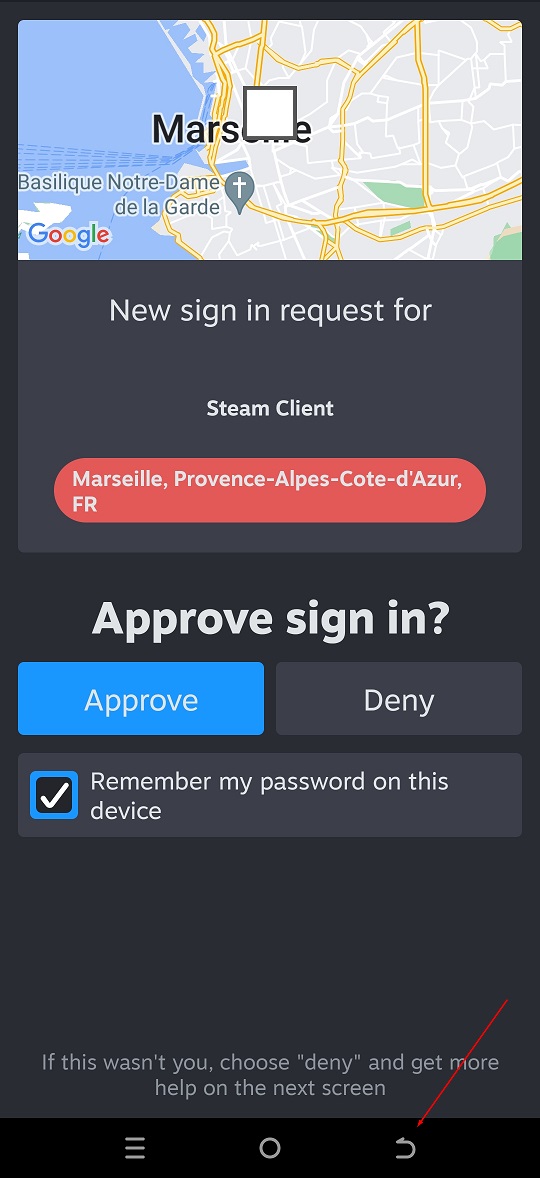
Open Steam on your phone. The application should put you on the sign-in request page.
Click back to return to the main menu.
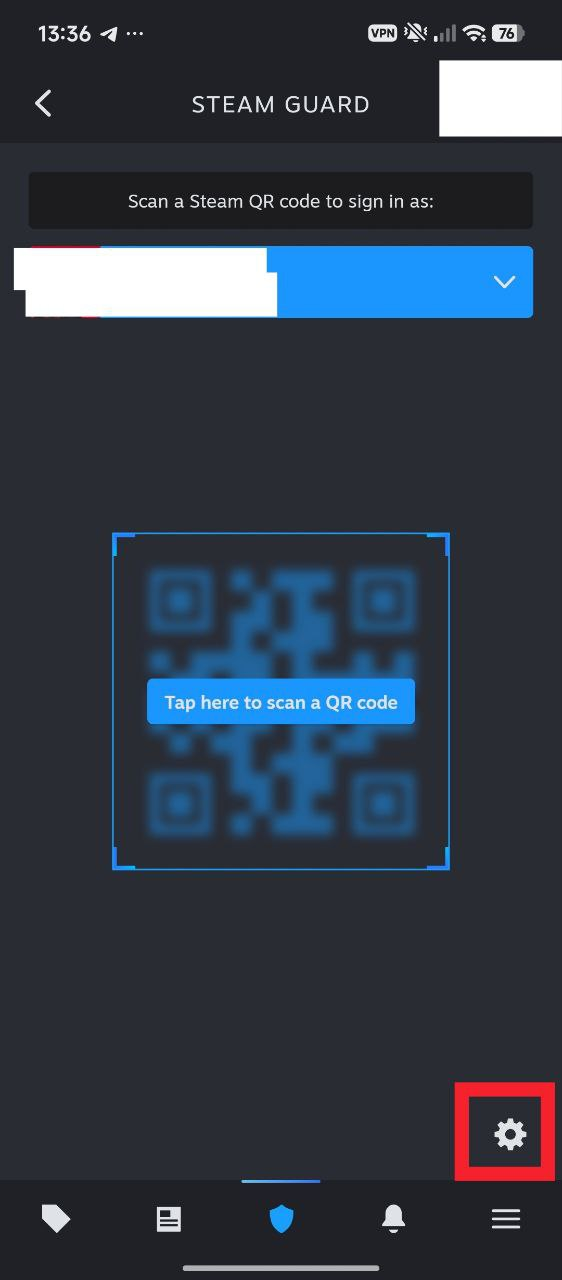
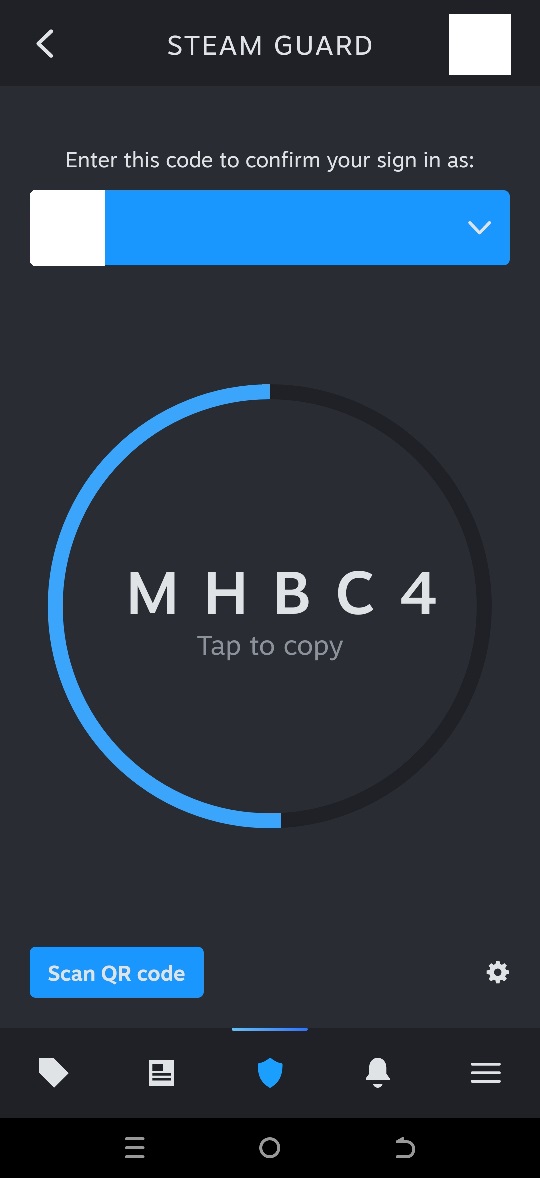
Go to the Steam Guard tab and click the "Settings" button.
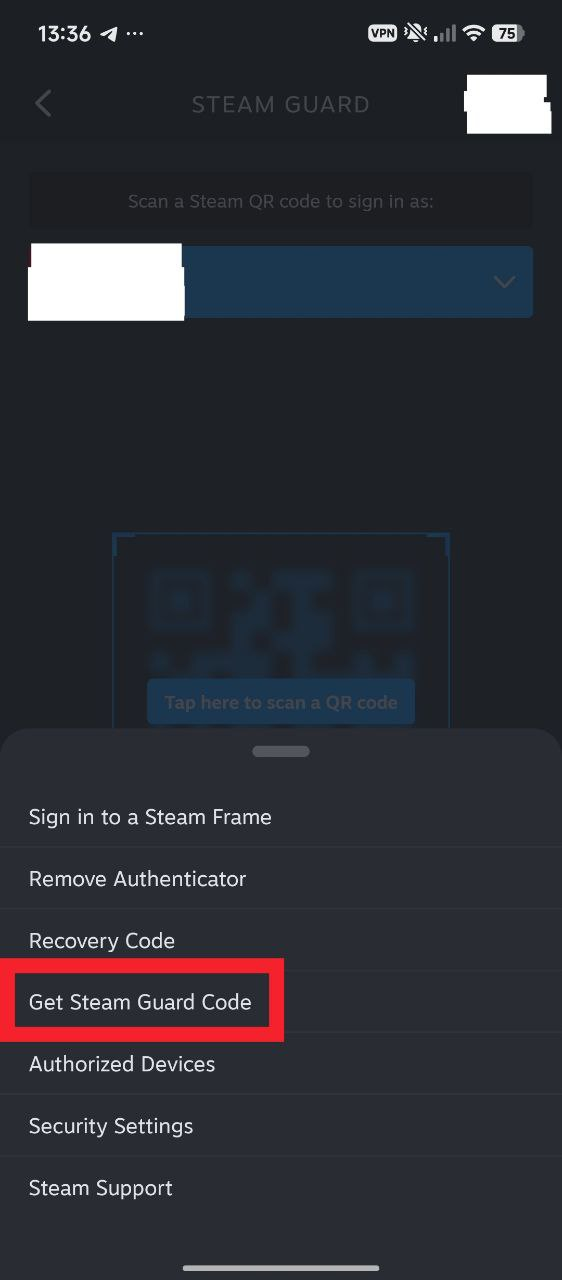
Сlick on "Get Steam Guard Code"
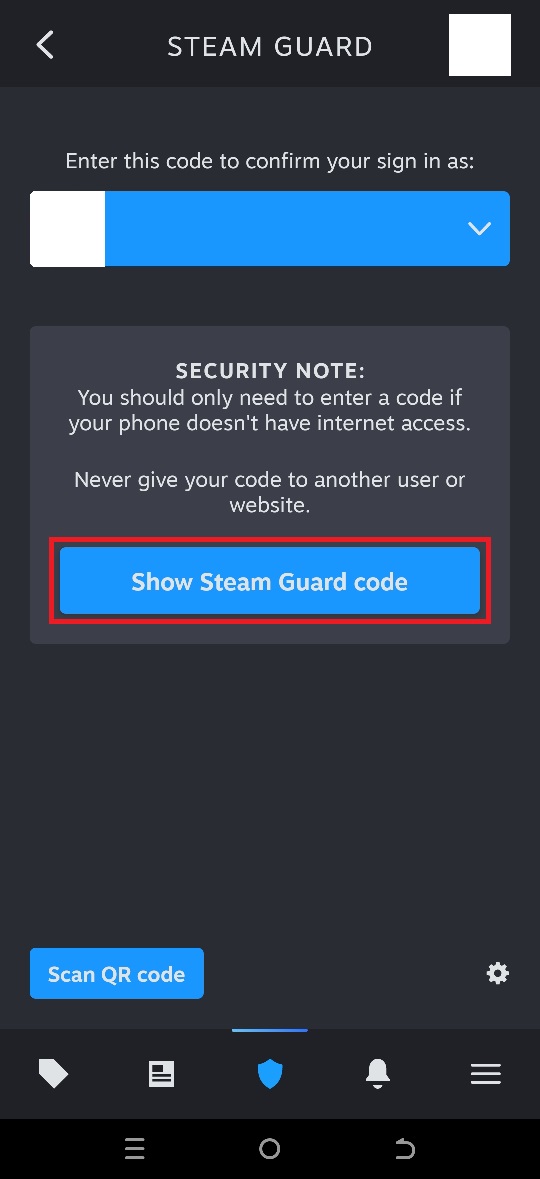
Confirm action.
On our remote gaming desktop, click "Enter a code instead".
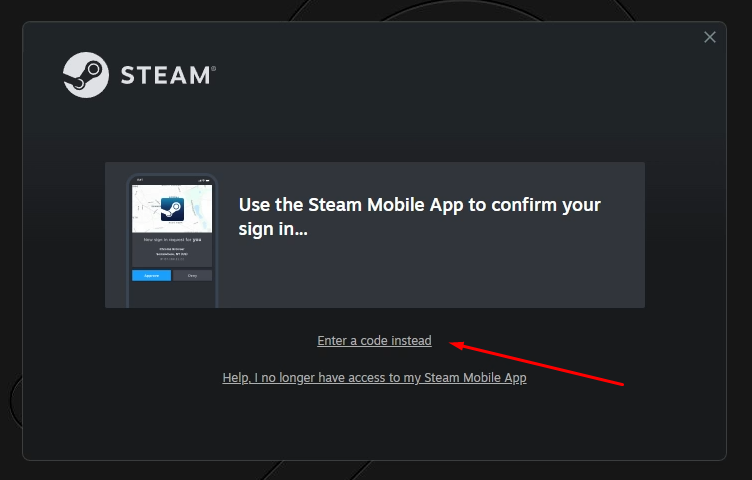
Enter the code from your phone.
IOS
Since there is no Back button on iOS, you'll have to complete a Steam survey for the latest sign-in attempt. To do so, please follow these step-by-step instructions:
Open Steam on your phone. The application should put you on the sign-in request page.
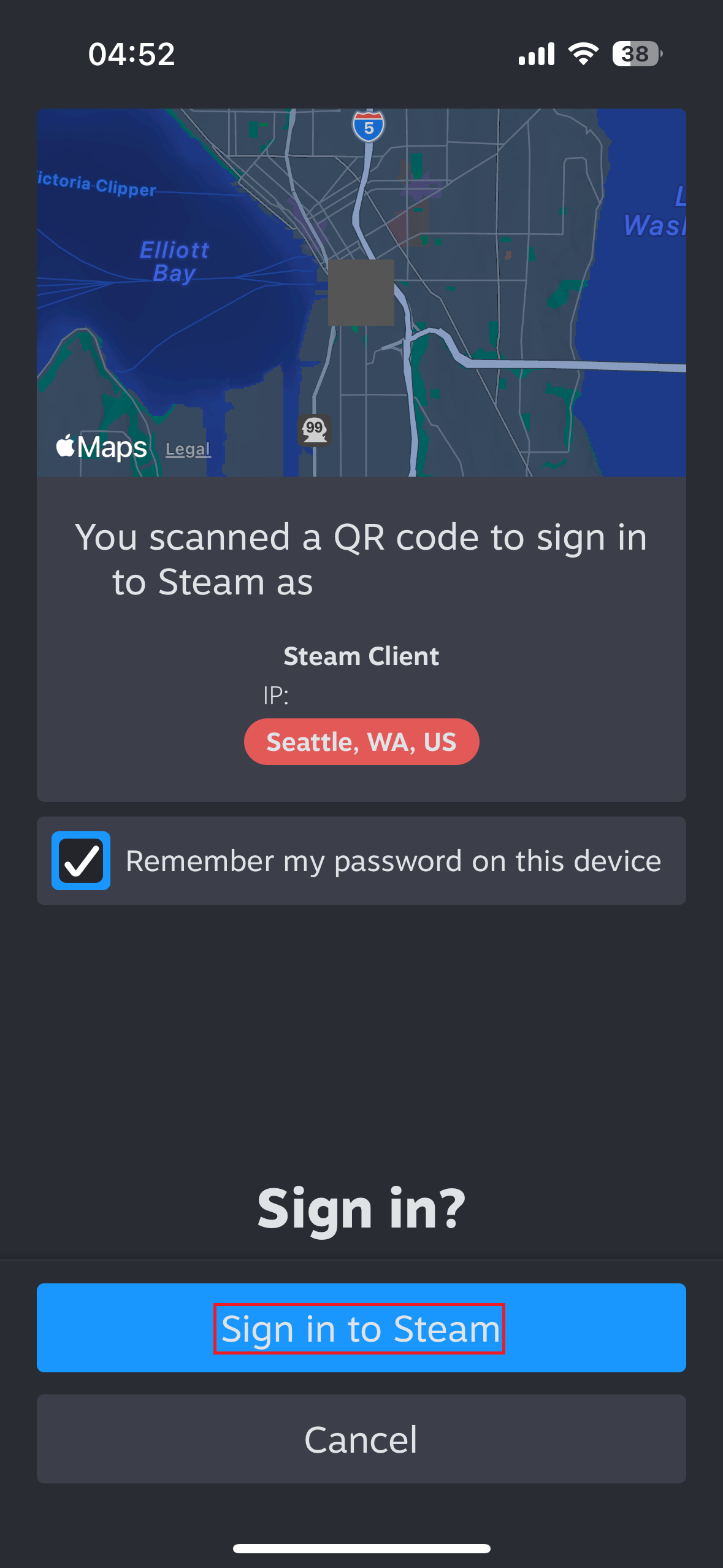
You will see the location of our server and details on what sign-in option you chose. Here, you can also check the "Remember my password" box to prevent Steam login in future sessions. You must click the "Sign in to Steam" button to proceed.
You will see the start of the Steam survey now. Select the "Steam Client" option for the first question.
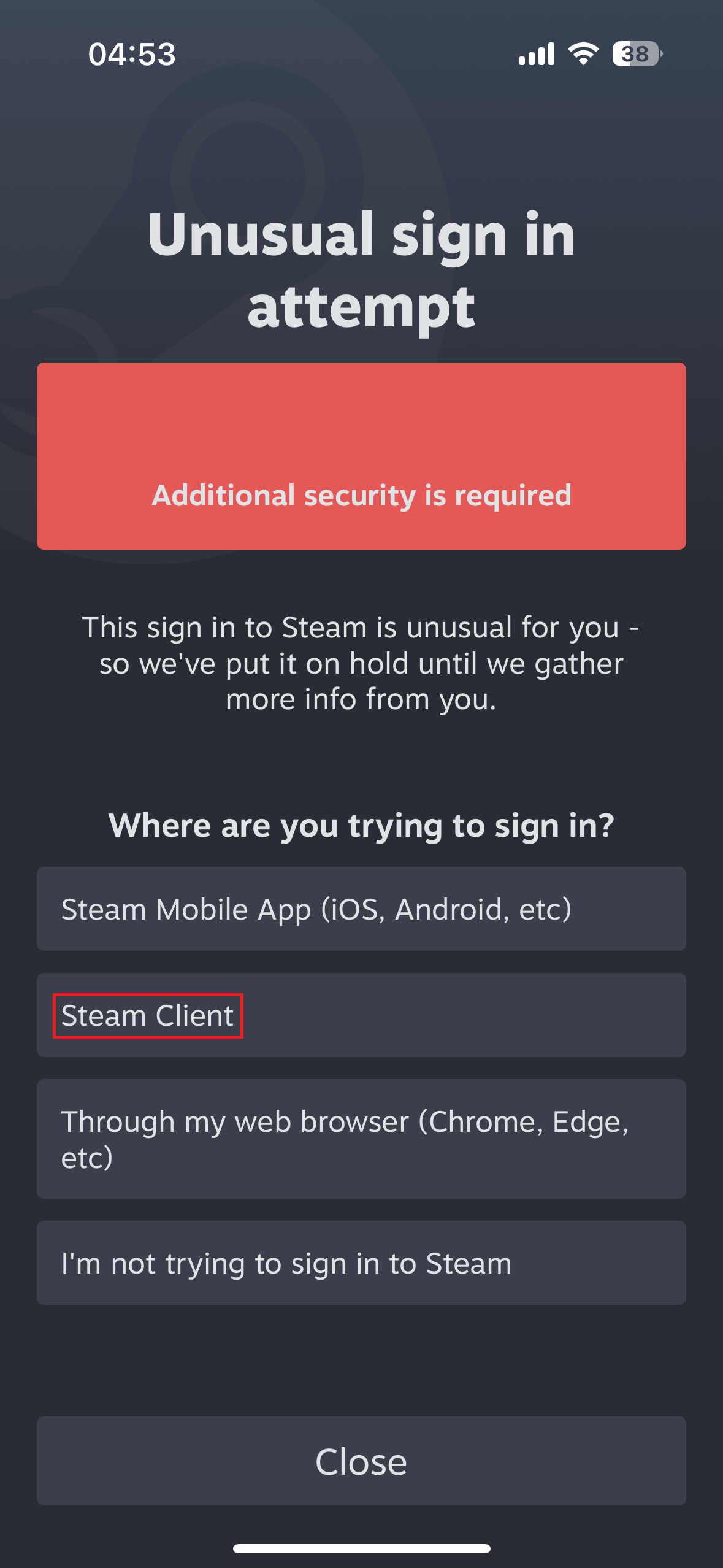
Select the location of the server as the closest one and pick the "Other" option for the last question.
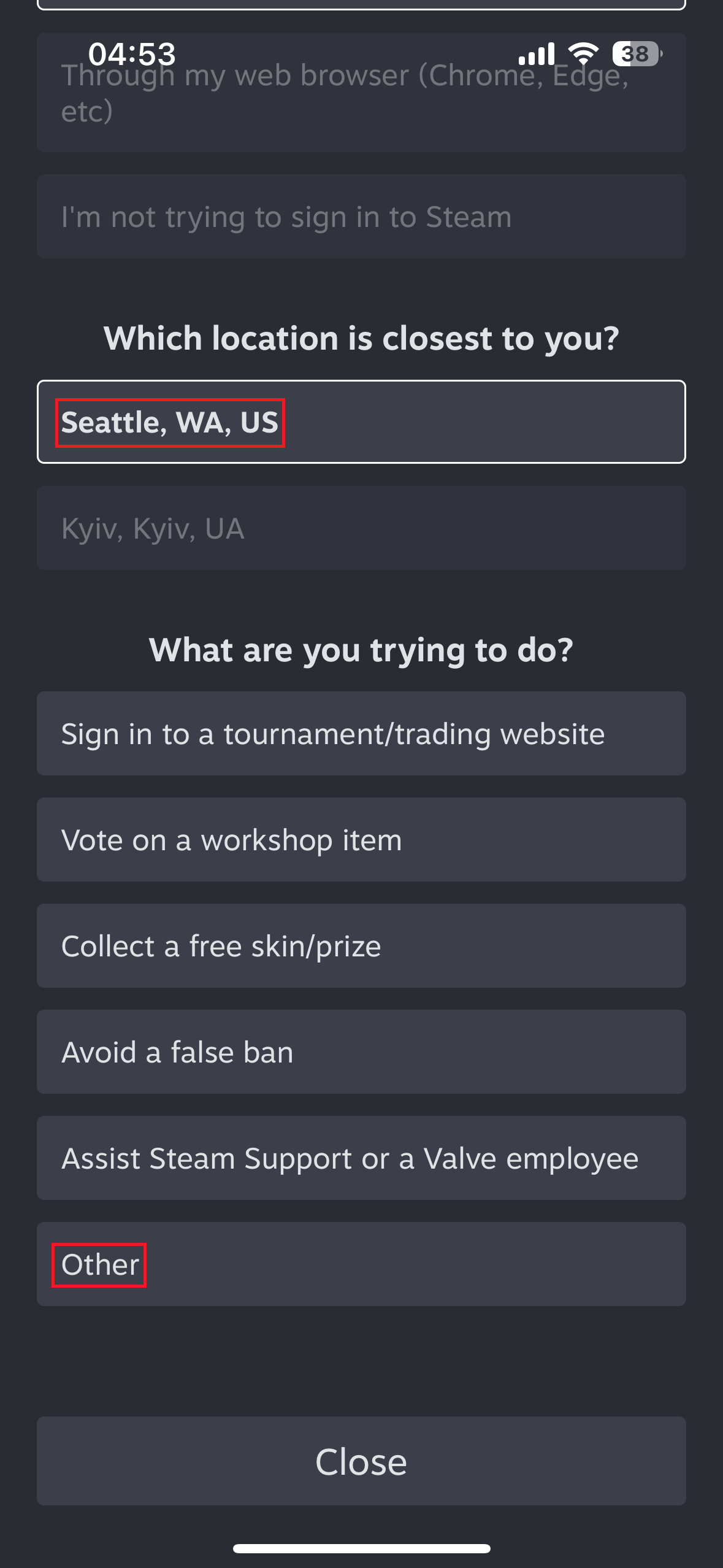
Finally, click the "Sign in to Steam" button to complete the login process. Be aware, the survey is time-limited, and the sign-in will fail if you take too long to answer all the questions.
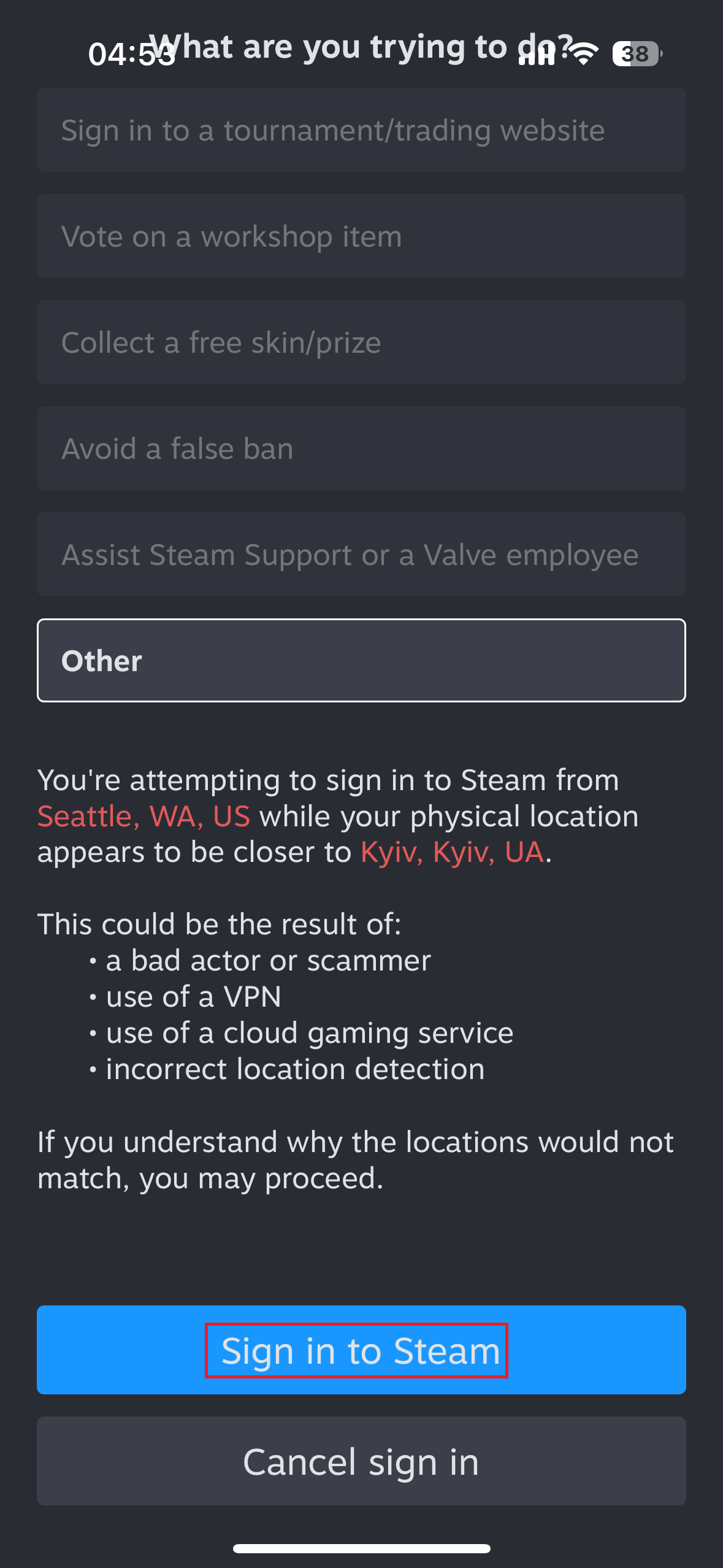
Once the process ends on your iPhone, the Steam Client on our remote gaming desktop will load your account.