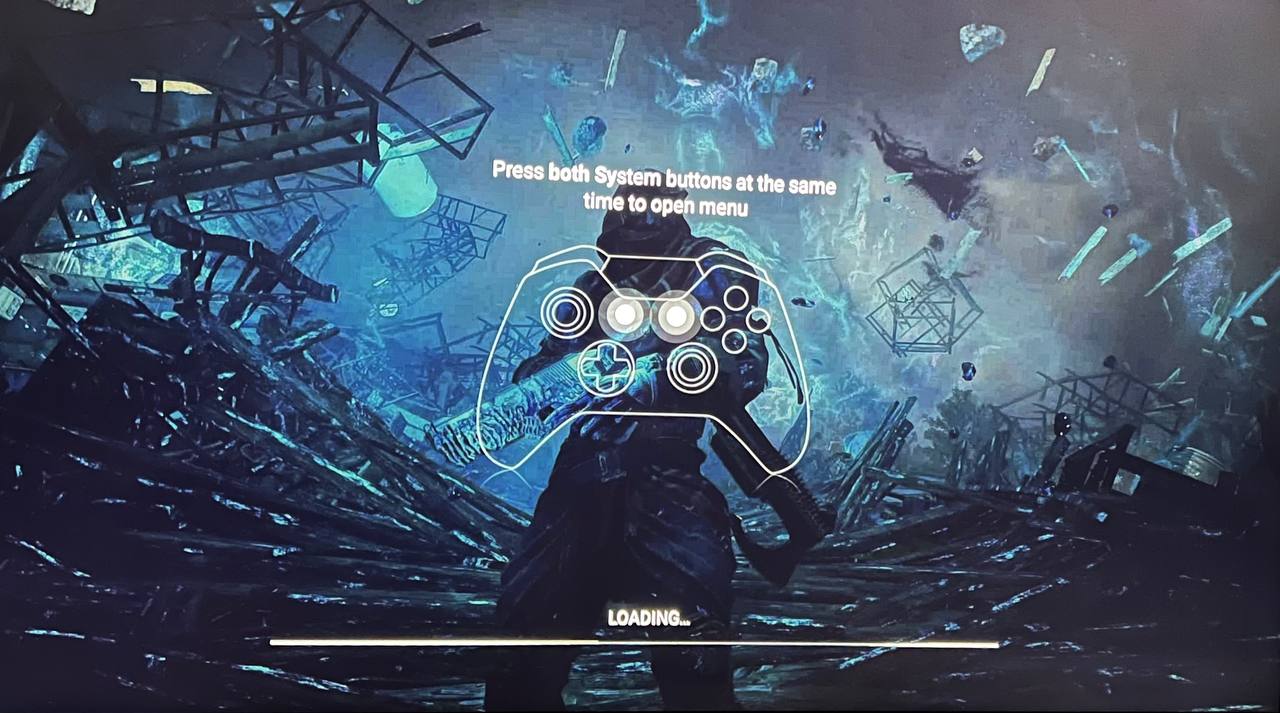
Important notes:
Microphone is not supported in the TV apps.
The Android TV app fully supports a keyboard and mouse. On Samsung TVs, only a keyboard is supported: it works in the login window, but stable operation inside a session is not guaranteed. Keyboard and mouse support for other TV models is in development.
If the A button on your gamepad doesn’t work in games, open our stream overlay (press the two system buttons on the gamepad) and disable cursor control by unchecking the box in the lower-left corner. See screenshot.
If the stream image is distorted, try switching your TV to a resolution ending in “i” — for example, from 1080p to 1080i.
Fire TV Stick app. Currently, only Amazon Fire TV Stick 4K and Fire TV Stick 4K Max are supported. We are working on support for other Fire TV Stick models.
To play on a TV, use our app. We can’t guarantee that the service will work in your TV’s browser — in most cases, the session won’t start.
Android TV owners can download our app from Google Play. For LG TVs, it is available in the LG Content Store. The Fire TV Stick app is available on Amazon. On other supported TVs, look for our app in the TV’s app store. If you can’t find it, your TV most likely doesn’t support our service.
How to start using Boosteroid
After installing the app, open it. You will see the welcome screen:

We recommend logging in with the QR code — it’s the easiest way. Scan the QR code with your smartphone:

Then you will be logged in to the app automatically via your phone’s browser:

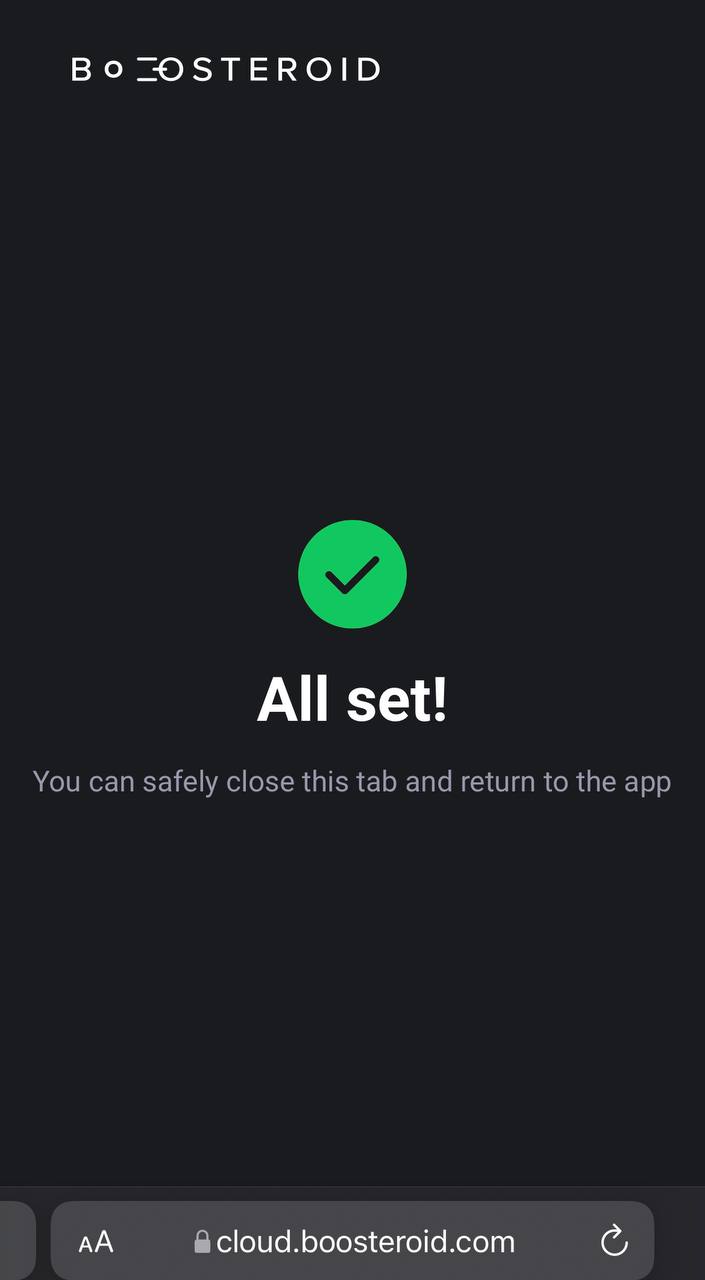
Choose the game you want to play:
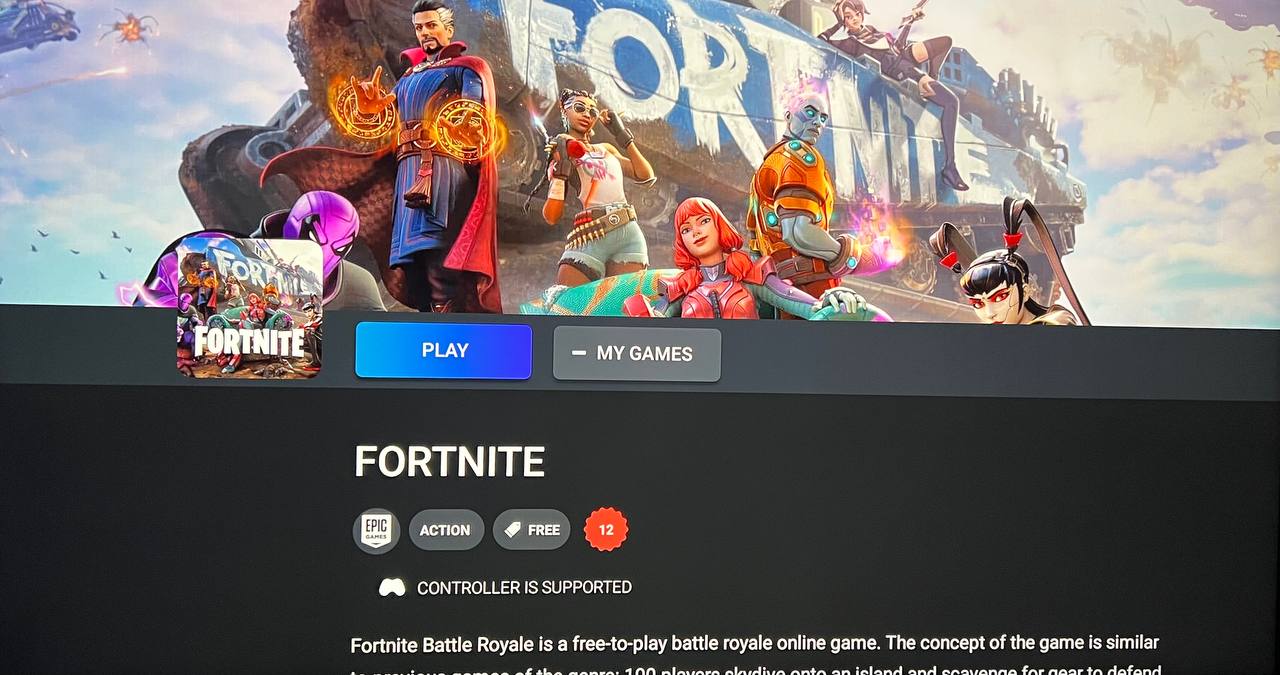
If a controller is already connected, you can start playing right away.
If you don’t have a controller, you can use the Boosteroid Gamepad app:
Please note: you can’t control the TV cursor while playing through the Boosteroid TV app.