
First of all, we recommend checking if your gamepad is officially supported:
If your gamepad is on the list, we recommend the following options to fix the problem:
Reinstall the application.
Close Steam on your device (via system tray).
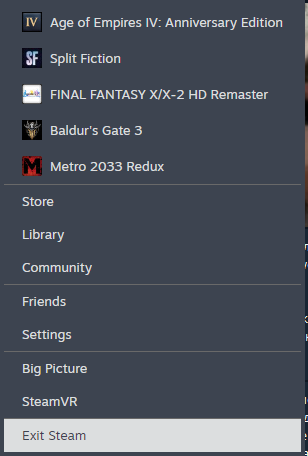
Try disabling/enabling Steam Input.
You need to do this inside a Boosteroid session, not on your local device.
Right-click a game in your Steam library -> Properties
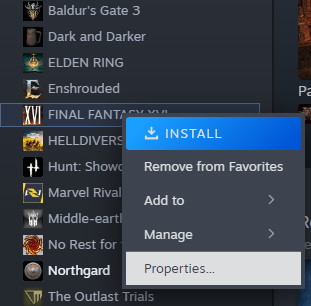
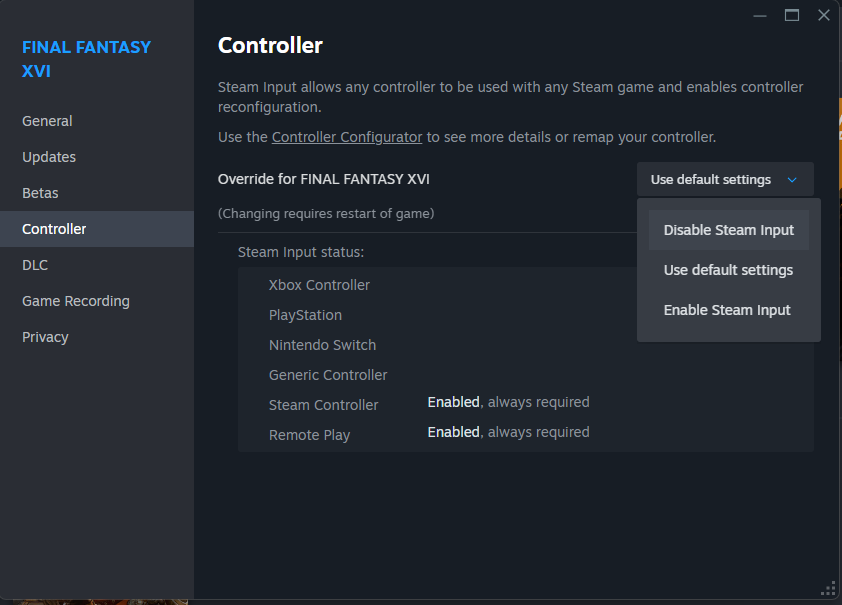
Go to the 'Controller' panel and disable/enable Steam Input from there.
Try another method of connecting the gamepad.
We recommend checking Bluetooth and wired connection (For Xbox 360 gamepad, only wired connection is available).
Try using the Xbox 360 gamepad emulator.
For example, DS4Windows for Windows or ShockEmu for macOS.
Reconnect the gamepad/restart the session.
Try pressing the gamepad buttons inside the session before launching the game. You should hear the sound of a new device being connected once the remote gaming desktop recognizes your gamepad.
Some games can recognize the gamepad only after pressing the buttons inside the game.
Check if your gamepad is charged at least 50%.
Test the gamepad in a browser or our app.
If your gamepad uses a Bluetooth connection, we recommend trying to clear the list of paired devices.
Try updating the firmware of your gamepad.