
Access the resolution selection to customize your streaming experience for optimal performance on your display.
This feature is currently available only on the Boosteroid Windows & MacOS app. Other platforms will receive this function in upcoming updates.
The resolution selection feature is currently only available in the Windows & MacOS application.
Some resolutions may not appear in the list due to the user's system specifications. If your device is not powerful enough, you will not have access to 4K resolution.
We recommend setting automatic session resolution. Automatic resolution will depend on the resolution of the monitor on which the Boosteroid client is running.
In the app settings, you select the resolution for the session, not the game. If the resolution in the game seems strange to you, try changing it in the display settings within the game.
Step-by-Step Guide
Open the user profile section within the Boosteroid app.
Select Settings from the menu on the left side.
Locate the Advanced Settings section on the right panel, where you'll find Resolution options.
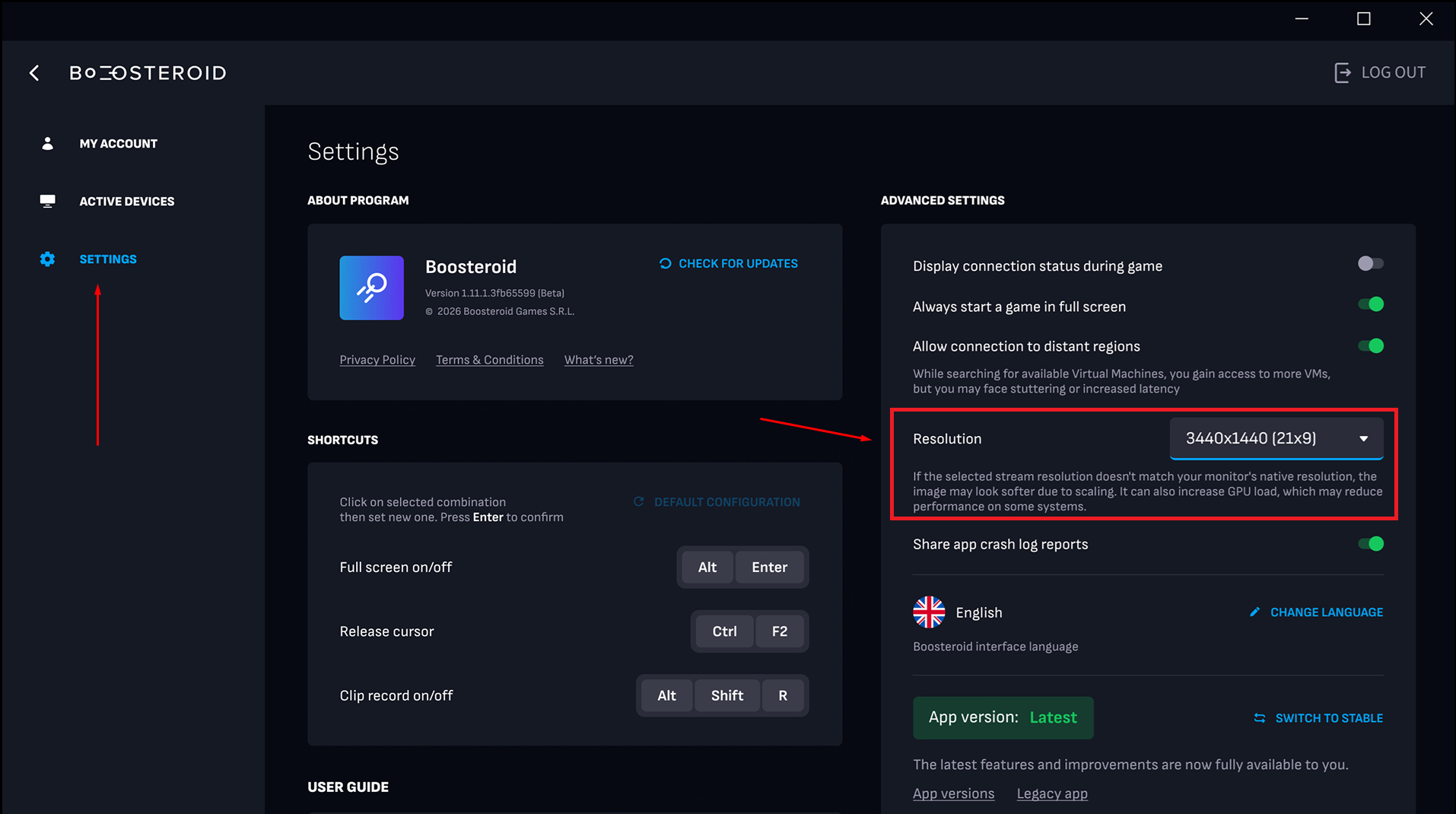
Choose your preferred resolution from the dropdown menu. Changes are applied for the next session launched using the app.
We recommend using a resolution that matches the screen resolution of the display you intend to play on, ensuring crisp visuals without scaling.
Note that higher resolutions require greater internet bandwidth for smooth streaming performance, and also place more load on the local system.
For best results, ensure your preferred display supports the selected resolution.