
When you start any of our desktop apps, it automatically tests all available decoders (hardware and software) and uses the one that performs best. If you have problems with the app, you can choose the decoder manually using launch parameters (keys).
Windows
In the Windows app, add a key to the shortcut properties. Try one key at a time: if one doesn’t help, replace it with another.
Keys available on Windows:
-a(starts the app with the ANGLE video decoder)-9(starts the app with DirectX 9)-11(starts the app with DirectX 11)-ar(Latest) (for Intel GPUs: selects the rendering engine automatically instead of OpenGL)-opengl(Latest) (forces OpenGL for rendering)-t(disables minimizing the app to the system tray)-s(forces software decoding)-h264(forces the H.264 codec) Stable version only-h265(forces the H.265 codec) Stable version only
Right-click the Boosteroid shortcut and open Properties;

In the Target field, add a key after the app path, separated by a space. Then launch the app again and check whether the issue is resolved.

If none of the keys helps, please contact our 24/7 support chat.
Linux
On Linux, keys are added differently, and the set of supported keys is slightly different.
Keys available on Linux:
-cuda(forces the CUDA video decoder)-vdpau(forces the VDPAU video decoder)-vaapi(forces the VA-API video decoder)-t(disables minimizing the app to the system tray)-s(forces software decoding)-h264(forces the H.264 codec) Stable version only-h265(forces the H.265 codec) Stable version only
Open the Terminal app from the menu;

Type or paste the following command and press Enter:
/opt/BoosteroidGamesS.R.L./bin/Boosteroid -sYou can replace
-swith any other supported key.
If none of the keys helps, please contact our 24/7 support chat.
macOS
On macOS, the process is similar to Linux.
Keys available on macOS:
-h264(forces the H.264 codec) Stable version only-h265(forces the H.265 codec) Stable version only-t(disables minimizing the app to the system tray)-s(forces software decoding)
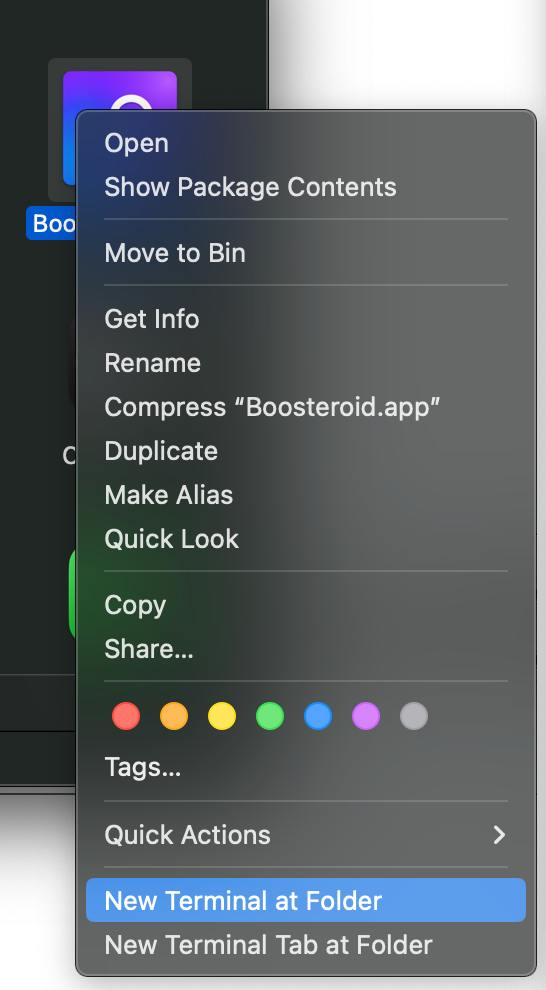
Right-click the Boosteroid app and select New Terminal at Folder;
Type or paste the following commands and press Enter after each one:
cd ./Contents/MacOS/
./Boosteroid -s
You can replace
-swith any other supported key.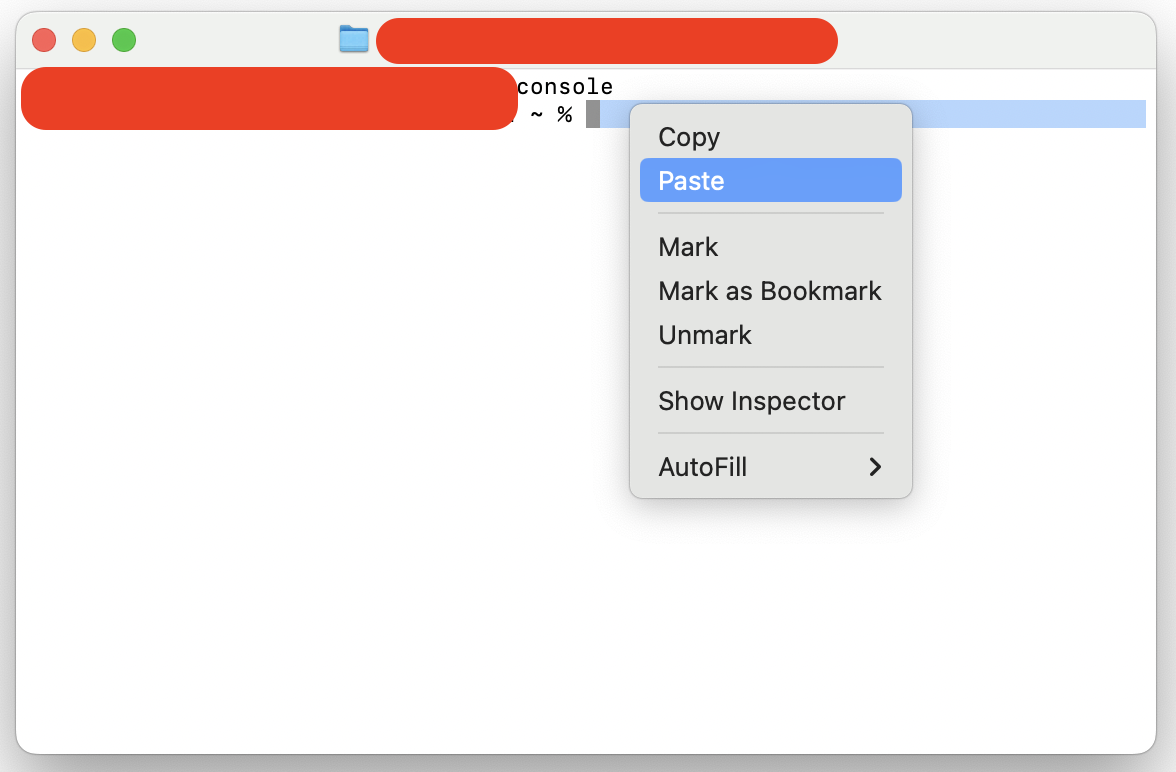
If none of the keys helps, please contact our 24/7 support chat.