Once you start a session, the system will look for free remote gaming desktops in your region, and if it doesn’t see any - you will be put in a queue. You will see your place in the queue and an approximate time that you'll have to wait to get a remote gaming desktop.

Note: The estimated time doesn't guarantee that you will be connected to a remote gaming desktop after waiting for the specified time. Instead, it shows the average waiting time for users in your position. Moreover, the estimated time will be more precise in the future once more data is available.
If you decide to quit the queue, you'll lose your place in the queue and will be put at the end of it if you launch another session. Therefore, quitting and clicking on “Play” multiple times won’t help you start the session faster. Instead, you'll only make the wait longer.
If you temporarily lose connection to the browser tab or client where you started the queue (e.g. the tab or the client is minimized/closed), you'll have 10 minutes to reconnect by reopening any of our clients. Otherwise, your place in the queue will be lost.
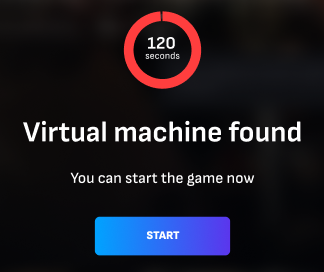
Once the available remote gaming desktop is found, the session will launch automatically. Also, in case you close the main client (e.g. browser) from which you initially launched the session, you'll see such a notification in any other open client (e.g. Android application). So, not to lose your ability to connect to the found remote gaming desktop, you'll need to press the "Start" button. Failing to press the button before the timer runs out will result in leaving the queue.
P.S.: In case the main client is closed and no other clients are opened, the notification won't appear and you'll just leave the queue.
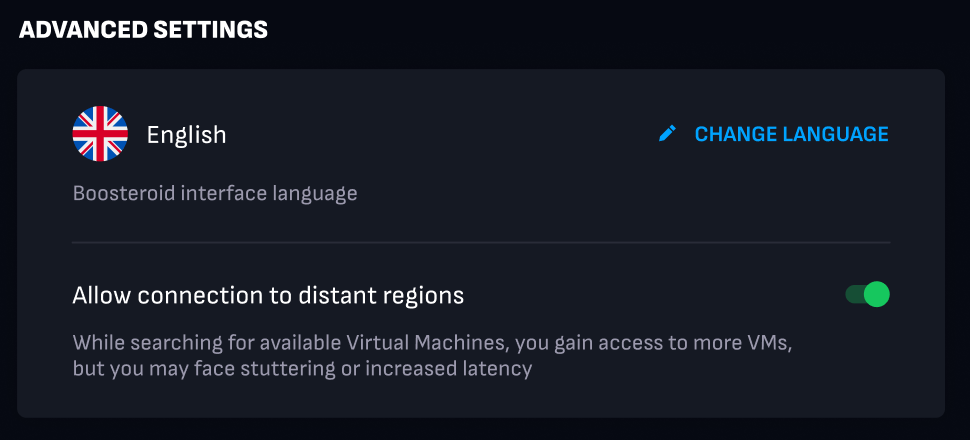
You can also enable the search for remote gaming desktops in other regions by changing this option in your account's advanced settings.
Note: you need to wait 5 min for the change in your account to be processed.
Known issues
Google Chrome
In this browser, a Memory Saver option is enabled by default. That means if you switch to other tabs while waiting in the queue, the browser will automatically mark the tab as inactive after some time. In that case, once you decide to open the tab again, the page will be reloaded and you'll lose your queue position
To check this option, open the browser settings and select the Performance tab (you can also open this tab by pasting chrome://settings/performance directly into the search field).
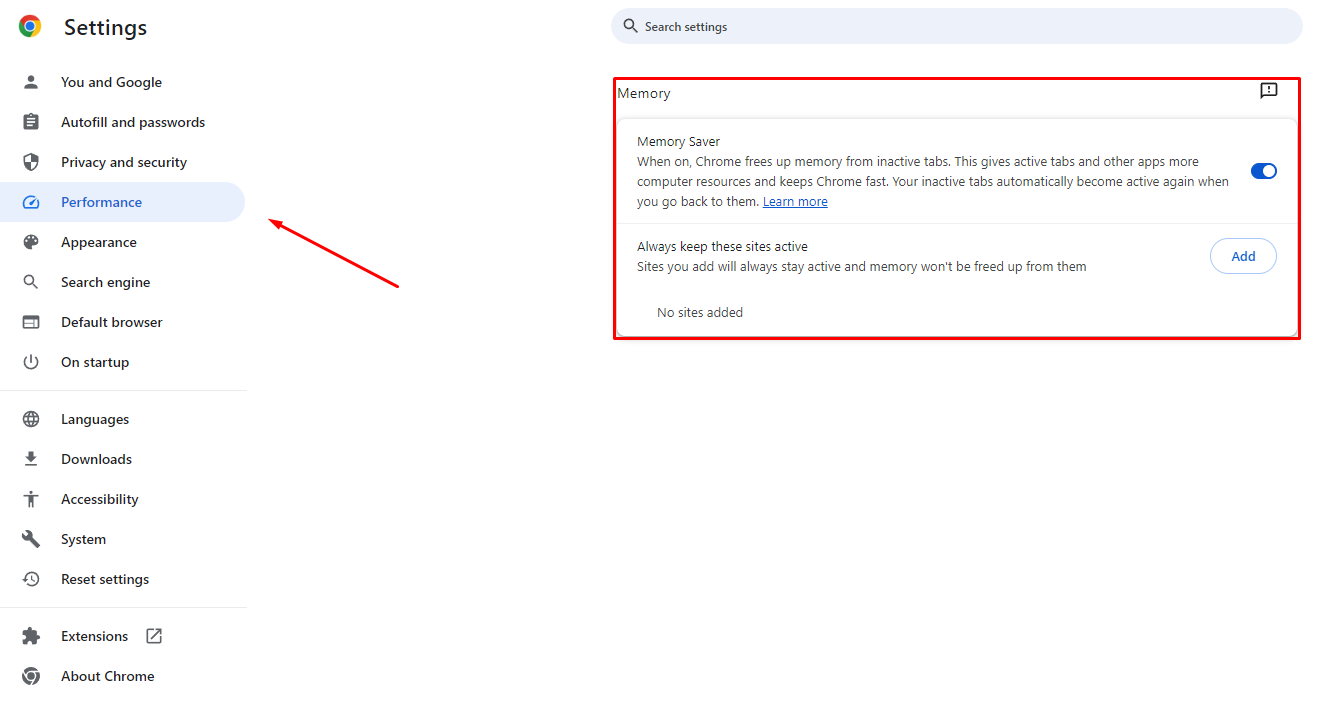
We recommend adding our site as an exception for this option (as an alternative, you can disable the function completely).
Press the Add button in the "Always keep these sites active" block;
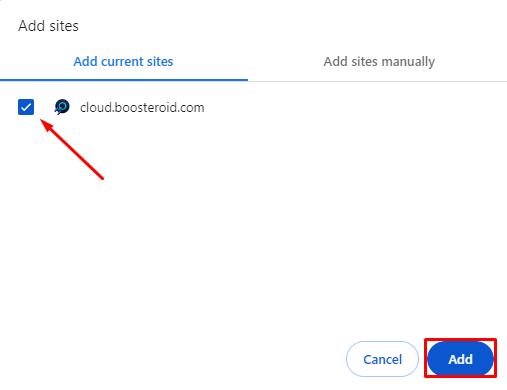
Choose the Cloud site from the available options (you can manually add cloud.boosteroid.com if our site isn't currently opened in your browser);
Press the Add button.